
Online Tuition
All tuition lessons have now moved to over to Zoom.
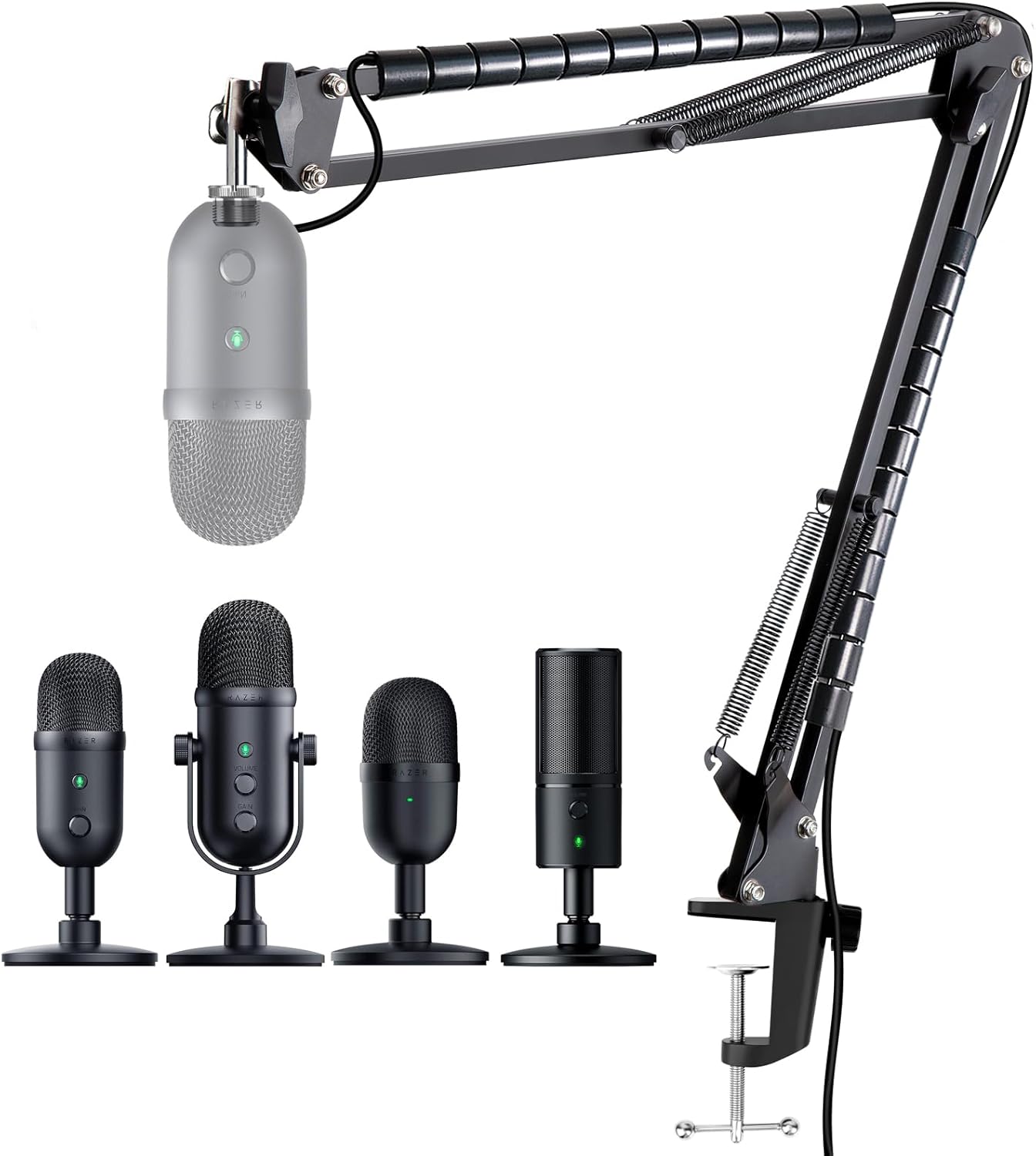
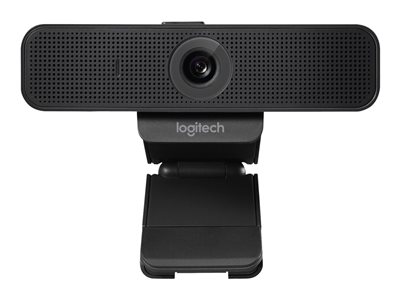
For my online lessons I am using a High Resolution (1080p) Logitech C925e business meeting webcam and a Razer Seiren
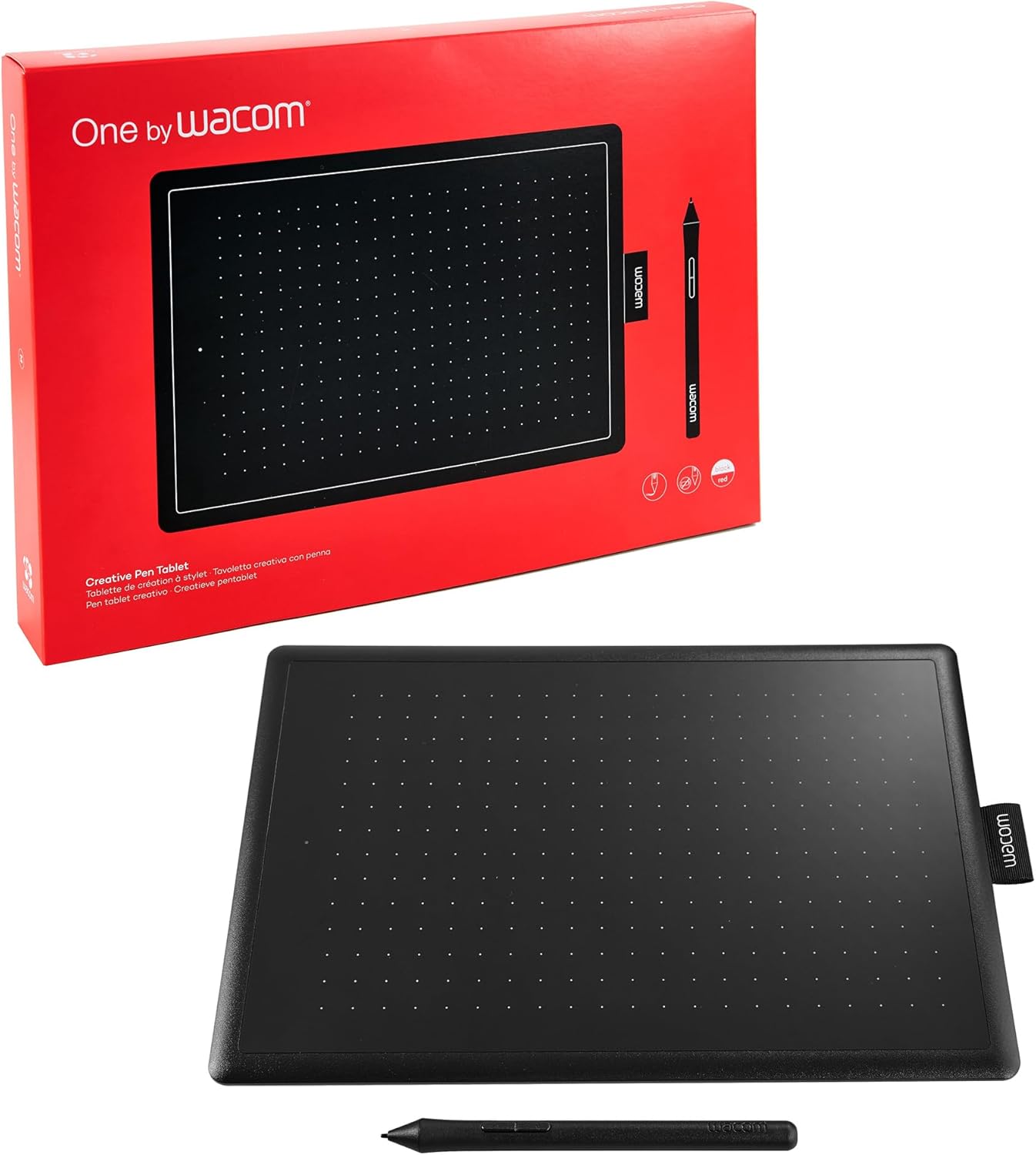
condenser microphone on a boom arm for crystal clear audio. Lesson notes are handwritten using a One by Wacom graphics tablet and all the lesson work from the virtual whiteboard is sent to the parent/student at the end of the lesson in PDF format. If you have a graphics pen or an IPad tablet let me know so that I can get you set up for writing on the virtual whiteboard too!
New!
Since September 2023, I have been using Zoom's inbuilt AI (artificial intelligence) module provide a detailed summary of each lesson. This is proving to be a big hit with both students and parents.
To help our lessons run as smoothly as possible, I humbly request that all students follow the advice below to help them get organised and receive the most benefit from their lessons.
Google email.
Where possible the student/parent should make a Google account so that my lesson bookings for you can be viewable within your Google calendar. You will also be able to access the complete history of all the homework that I have ever set via Google Keep.
Homework layout.
Please write the date and exercise number on each page (of your lesson work and homework) along with the respective question number beside your working.
Be sure to mark your work using the answers in the book!
PDF file of completed homework.
Please use a phone app to take pictures of your completed homework and then from a single PDF file from those images, this will help me discuss and edit your homework easily.
I recommend using the Camscanner app which you can download for free from your app store: Android Google Play  or Iphone Apple Store
  .
.
After installation, you may be prompted to upgrade the app to the paid version which is completely unnecessary since we will only need the basic features. So be sure to click the cross on the top right hand corner if the latter prompt appears.
Here is a short 2min YouTube video showing you how to use the Camscanner app in batch mode to take multiple pictures and form a single PDF.
Tips.
- Remember gmail has a maximum filesize limit of 25MB, you can easily stay below this threshold by tapping the HD icon (top right) in the Camscanner app and selecting 4M or 6M resolution.
- After taking the pictures you can tap on "Filters" and remove the auto enhance feature to make the images appear more natural.
- If you really want to be super organised, you can change the default filename for your files, you only need to set this once. To do so, before sharing your file by email, click on the current filename of the PDF, tap settings and change the "Naming Settings" to yourfirstname_[Year]_[Month]_[Day] this will then be set for all your future scans!
Email.
Please send your marked homework (with ticks and crosses/dots) at least 1 day before your lesson (please avoid sending homework via WhatsApp if possible).
This will give me time to review your submission for basic errors and ensure that you are ready for your lesson.
Calculator for exam use.
The correct calculator for all UK A'levels and GCSEs is the Casio Classwiz FX-991CW please remember to check the model number when purchasing.
Online algebra solvers and graph drawing
The use of online apps can help produce accurate graphs/diagrams quickly. Although it is not essential I do highly recommend that students familiarise themselves with the use of the following free online apps (no account required) which are very useful for in lesson use and experimentation
-
-
- Desmos.
The best graphing app on the internet! - Wolfram Alpha.
The most powerful algebraic solver with nearly 30 years of development experience. - Geogebra.
A favourite app used by schools for both calculations and graphing. - Casio Classwiz calculator emulator.
Install a virtual calculator on your computer/mobile/tablet!
- Desmos.
-
If you can follow the steps above it will dramatically improve our workflow.
Many thanks and I look forward to seeing you in your next lesson!
Gursh
Supplementary advice (optional).
It is a good idea that you start keeping a paper record of the homework you are doing each week so that you can measure your progress! Needless to say if you're in the final stages of your course you must keep a log of your completed papers to help you recognise your strengths and improvement topics.
Click here for homework and past paper record sheets which are available in PDF and Doc format.
The homework sheet is to be kept at the front of your folder and presented at the start of every lesson.
The past paper record sheet, should be used in conjunction with the homework sheet when you are attempting practice papers for homework (regardless of whether I or your school has set you the exam papers)
Additional note for PDF creation from JPEGs.
Using your computer you can simply convert all your of your jpeg pictures to a single PDF by using the Foxit website, its very easy because there is no app to install and no login required.
For those of you that prefer to use your own computer functionality to do the conversion you can click here for Windows 
 (using the Print to PDF function) and click here for Mac (to use the Preview app to make PDFS) and if you're a Linux user
  then you probably don't need any help at all!